
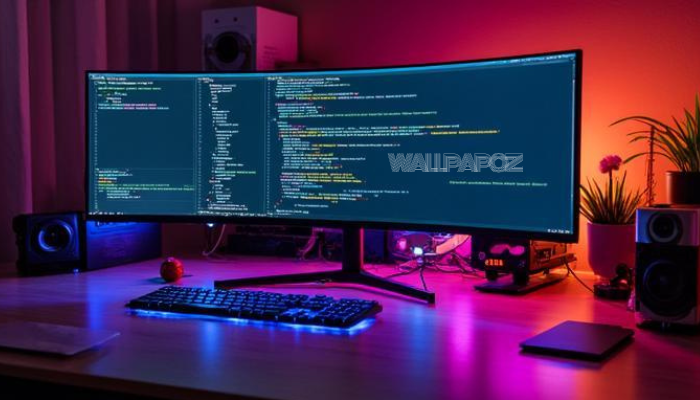
Wallpapoz is a dedicated wallpaper configuration tool designed specifically for GNOME and XFCE desktop environments. It addresses a simple yet profound desire: to have a different background for every workspace you use. Instead of a static, singular image across your entire digital session, Wallpapoz breathes life into your desktop by syncing your visual environment with your current task.
Understanding the Philosophy of Dynamic Workspaces
Why would someone need a different wallpaper for every workspace? To the uninitiated, it might seem like mere eye candy. However, for the seasoned developer, writer, or multitasker, it is a matter of spatial awareness and cognitive load reduction.
When you switch from a workspace dedicated to coding to one dedicated to research, a visual shift in the background acts as a psychological “context switch.” It signals to your brain that you have moved into a different zone of productivity. Wallpapoz facilitates this transition seamlessly, making the Linux desktop feel more intuitive and organized.
Key Features of Wallpapoz
-
Workspace Synchronization: Assign specific images to specific workspace numbers.
-
Daemon-Based Operation: Runs quietly in the background (as a daemon) to monitor workspace changes and update the root window background instantly.
-
Intuitive GUI: Provides a clean interface to manage your “Wallpapoz Profile,” where you can add, remove, and preview images.
-
Timed Changes: Beyond just workspace switching, it allows for wallpapers to rotate based on a set time interval within a single workspace.
-
XFCE and GNOME Support: While many tools focus on one environment, Wallpapoz bridges the gap for two of the most popular Linux desktops.
Technical Overview and Installation
Wallpapoz is built on Python, leveraging the strengths of GTK+ for its interface. This makes it lightweight and relatively easy to integrate into most modern Linux distributions. Because it operates by interacting with the window manager’s property settings, it provides a “native” feel without the lag associated with heavier customization suites.
Installation Basics
For most users on Debian-based systems or Arch Linux, Wallpapoz can be found within community repositories or installed via source. The typical workflow involves ensuring that Python and the necessary GTK bindings are present on your system.
Once installed, the application is divided into two parts:
-
The Editor: This is where you craft your profiles and assign images to your workspaces.
-
The Daemon: This is the engine that stays active. Without the daemon running, the background will remain static.
Mastering the Wallpapoz Workflow
To get the most out of Wallpapoz, you should approach it with a plan for your desktop workflow. Here is a guide on how to set up an elegant, professional environment.
1. Defining Your Workspaces
Before opening the software, decide how many workspaces you need. A common setup includes:
-
Workspace 1 (Communication): Emails and Slack. A calm, blue-toned wallpaper works well here.
-
Workspace 2 (Production): Your IDE or text editor. A dark, minimal wallpaper reduces eye strain.
-
Workspace 3 (Research): Web browsers and PDF readers. A vibrant, inspiring landscape can keep energy levels high.
-
Workspace 4 (Entertainment): Music players or casual browsing. This is where you put your favorite high-energy art.
2. Creating a Profile
In the Wallpapoz editor, you will create a new profile. You can add your chosen images and map them to the workspace numbers you defined. One of the elegant features of Wallpapoz is the ability to save multiple profiles. You might have a “Deep Work” profile for office hours and a “Relaxed” profile for the weekend.
3. Activating the Daemon
After saving your configuration, you must start the daemon. In the Wallpapoz interface, there is a clear option to “Start Wallpapoz.” Once active, the software begins listening for the signal that a workspace has changed. The moment you use your hotkeys to slide to a new screen, Wallpapoz swaps the image.
Why Wallpapoz Stands Out in a Sea of Customization Tools
The Linux ecosystem is full of wallpaper managers. Tools like Variety or Nitrogen are popular choices, but Wallpapoz occupies a specific territory. While Variety focuses on downloading and rotating images from the web, Wallpapoz focuses on structural consistency.
It is not just about seeing a new picture; it is about knowing where you are in your system. This makes it a superior choice for users who value “The Zen of Python” philosophy: simplicity and clarity. By linking the background to the workspace, the wallpaper becomes a functional UI element rather than a decorative afterthought.
Compatibility and Performance
One of the most impressive aspects of Wallpapoz is its low resource footprint. Because it does not rely on complex animations or heavy transitions, it is suitable for older hardware or for users who want to squeeze every bit of performance out of their machines. It respects the system’s existing configuration and works with the desktop’s native wallpaper rendering engine.
Troubleshooting Common Configuration Issues
While Wallpapoz is generally stable, the ever-evolving nature of GNOME and XFCE can sometimes lead to quirks. If you find that your wallpapers are not switching, consider the following steps.
Check the Daemon Status
The most common issue is simply that the daemon is not running. Ensure that you have enabled Wallpapoz to start on login. You can usually find this in your “Startup Applications” preference pane within your desktop settings.
Desktop Environment Permissions
In some newer versions of GNOME, the way the desktop handles the background has changed to accommodate “Dark Mode” variants. You may need to ensure that your desktop settings allow external programs to modify the background property.
Image Scaling
If your images appear stretched or pixelated, check the “Style” settings within Wallpapoz. You can choose between “Scaled,” “Centered,” “Tiled,” or “Zoom.” For a professional look, “Zoom” or “Scaled” is typically the best choice to ensure the image fills the screen without distorting the aspect ratio.
Semantic SEO and the Future of Desktop Customization
As we look toward the future of the Linux desktop, the trend is moving toward “Wayland” and more secure, sandboxed environments. While Wallpapoz was built in the era of X11, its core philosophy remains relevant. Users want a desktop that adapts to them.
Searching for terms like “Linux dynamic wallpaper,” “GNOME workspace manager,” or “XFCE background switcher” will often lead you back to Wallpapoz. Its longevity in the community is a testament to its utility. For those moving into more modern setups, Wallpapoz serves as a blueprint for how workspace-aware applications should function.
Designing the Ultimate Visual Workspace
To truly elevate your desktop, you should pair Wallpapoz with a cohesive icon theme and GTK theme. When your wallpaper changes, the colors of your environment should still feel unified.
Pro Tip: Use a tool like Pywal in conjunction with Wallpapoz if you are an advanced user. While Wallpapoz changes the background, Pywal can scripts the change of your terminal colors to match that new background, creating a completely immersive experience.
Benefits of a Managed Desktop
-
Reduced Mental Fatigue: No more wondering which workspace you are on.
-
Enhanced Focus: Tailor your environment to the specific task at hand.
-
Personal Expression: Show off your favorite photography or digital art in an organized way.
Conclusion
Wallpapoz remains a hidden gem for Linux enthusiasts who want to master their domain. It is a tool that understands that the desktop is more than just a place to launch apps; it is a digital home that should be as organized and aesthetic as a physical office. By allowing users to define their space through imagery, Wallpapoz turns a standard OS into a personalized productivity powerhouse.
If you want to read more information, visit